Thursday, March 12, 2009

COGNOS 8.3 Error - Setup cannot continue because an outstanding reboot is required. Please reboot your computer and try again


I haven’t come across this issue but my colleague did; it is such a strange error that even after rebooting the system several times we were getting this error. So I logged into the COGNOS knowledge bank and found the solution.

Basically this issue may occur when trying to reinstall Impromptu or PowerPlay (Series 7) or COGNOS 8.3 on Windows operating system. The setup prompts to reboot the system but rebooting the system several times does not help and we get the error message “Setup cannot continue because a reboot is required.”

So the solution here is:
1. Open Windows Explorer.
2. From the Tools menu, click Folder Options, View, Hidden files and folders radio button.
3. From the Start menu, click Search, All Files or Folders and enter GSUNINSTALL.FLG.
4. Rename the GSUNINSTALL.FLG to GSUNINSTALL.OLD in the local Temp directory.
5. Proceed with the installation.

Thursday, March 5, 2009

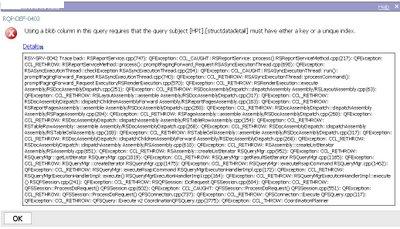
COGNOS – Using a blob column in this query requires that the query subject ….. must have either a key or a unique index


BLOB is basically an abbreviation for Binary Large OBject. It is a collection of binary data in the database.
The snapshot above shows an error because of the BLOB and one of the main reasons for that error could be a particular field in the DB that is a text field. At least in my case, when I first encountered this issue, it was because of ‘text’ field in the db which is not supported by COGNOS. So the solution for this is to change the text field in the DB into a VarChar.
In one of the metadata queries, we again faced this issue even though we had updated the DB long back. This error started coming when we added new data into one metadata query @ the package level. When I tested the query individually at the import layer; it seems to be working but when I am combining couple of these BLOB VarChar from different metadata queries I was facing this issue again. So I named these same objects differently at the import layer level (on different queries) and joined them @ the package level it seemed to be working.
I am sure that this error had nothing to do with the blob issue but it was still throwing the BLOB error. I would say; always name the metadata with different and specific names so that the system does not get confused when we create relationships.

Saturday, February 28, 2009

Content Manager did not return an object for the requested search path COGNOS 8.3


This issue usually comes up when it is a drill through or a drill down and there are couple of issues why we could get this error:

1. Firstly, check the path of the report ones. Mainly check the spaces or change in name of the report. Sometimes what happens is that; when some one uses a report they might save it with a different name and delete the actual one.

2. The other thing is to check the package. It might happen that we develop the report in one package and without deploying we copy / paste the report in a different package. Later when we delete the actual package the Link to the second level report is lost.

This happens to me a lot as we develop reports in one package and test it in a different one and I don't get enough time to create and deploy the package every time.

3. The other issue is a very very rare case but has happened to me once, when we deployed the package; COGNOS did not convert all the reports properly and the paths in the reports did not get updated.

Monday, November 3, 2008

COGNOS 8.3 REPORT STUDIO - Columns or rows missing from crosstab if they contain no data

Faced this issue when one of the client wanted to display all the dates in the date range even though there was no data present for that particular date ‘Column’. This client was very particular about the format of the report and what they wanted. There was no compromise on anything at all.

Following are the steps we need to follow and we can solve the issue.
1) Create a "Column Query", containing only the column information and a dummy data item with a value of 1.
2) Create a "Row Query", containing only the row information and a dummy data item with a value of 1.
3) Create a "Dimension Query" query that joins the queries from steps 1 and 2 on dummy. This requires that the Outer Join Allowed property of the query be set to Allowed. This creates a cross join that includes all possible combinations of rows and columns
4) Create a fourth query that contains the data for the crosstab. This is the same as a normal crosstab report.
5) Join the queries from steps 3 and 4, using cardinality of 1..1 and 0..n respectively. In the join create 2 links, for both the data items (row and column). When dragging data items into this new query, ensure that you are dragging in the row and column headings from the "Dimension Query".

This ensures that all possible rows and columns will be returned, even if there is no data associated with them. (You can also find this solution in the COGNOS knowledge bank.)

Monday, October 6, 2008

COGNOS Report Studio 8.3 Filtering a TIME column and CASE WHEN

I had a report to complete, in which I had to filter in all appointments over 30 minutes. The metadata that I was using was a measure and it had both semi-aggregate and aggregate property as ‘SUM’.
Initially to filter the time column I used,
[time] > 30 , I got weird errors. I tries other functions like ‘contains’, ‘like’ and many more options. Later found out that the solution was very simple. The time should be filtered in the form of time only. I mean,
[time] > (000 00:30:00.000)
This took about 2 hours for me to figure it out. The other problem I had to face was using this [time] in a case when statement. Here the situation was that; I had to display in the rows as ‘8AM – 9 AM’ and so on. The format to filter here again changes, which took me about ½ an hour.
CASE WHEN
([Time] > 07:59:00.000 AND [Time] < 09:00:01.000) THEN '8AM - 9AM'
ELSE ‘FULL DAY'
END
So clearly, we don’t make use of that extra ‘000’ at the beginning of the time format. Crazy formats.

Monday, September 22, 2008

Cognos 8.3 - Steps for Comma delimited file addition into Cognos Environment

The default format of the CSV is tab delimited.

The steps involved in adding it to the Cognos Connection is as follows:

1. Go to Cognos Connection.
2. In the upper-right corner, click Launch, Cognos Administration.
3. On the Status tab, click System.
4. From the System drop-down menu, click Set properties.
5. Click the Settings tab.
6. Next to Environment, Advanced Settings, click Edit.
7. Enter parameters and values from "CSV Properties and Values", as required.
ie.
RSVP.CSV.DELIMITER: ,
RSVP.CSV.ENCODING: windows-1252
8. Click OK.

Note:
It takes about 30 seconds after this change for the changes to take effect.
COOL!!! Right 

Tuesday, September 16, 2008

Framework Required Filter in Cognos 8.3 RSV-SRV-0042

One thing I have been observing is that, in 8.2 when we have required filters to access the metadata we would again filter the same filter in a logic manner with the ‘Usage’ set to ‘Optional’. So basically what is happening here is that, we are using the filter once in the prompt page and a filter in the query also. But in the Cognos 8.3 it throws an error when I try to do it that way.
The error looks something like this.
Prompt 'beginning_AR_date' is used multiple times with conflicting data types
In Details
RSV-SRV-0042 Trace back: RSReportService.cpp(747): QFException: CCL_CAUGHT: RSReportService::process() RSReportServiceMethod.cpp(217): QFException: CCL_RETHROW: RSReportServiceMethod::process(): promptPagingForward_Request RSASyncExecutionThread.cpp(690): QFException: RSASyncExecutionThread::checkException RSASyncExecutionThread.cpp(204): QFException: CCL_CAUGHT:…….and goes on.